- Open Outlook. (Don’t have the app? Here’s how to download it.)
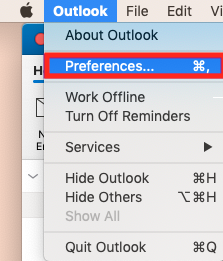
- From the menu bar, select Outlook > Preferences.
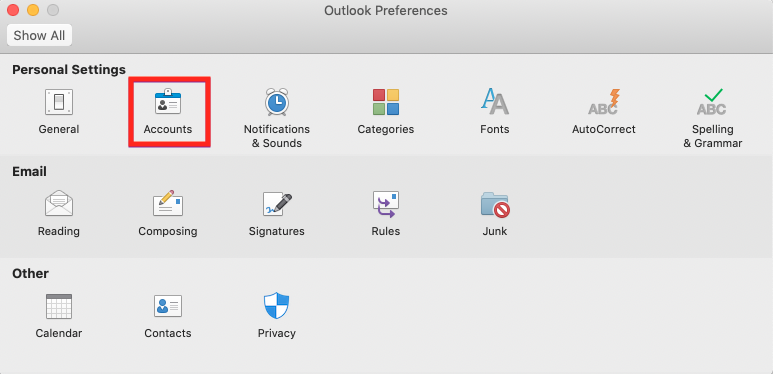
- Select Accounts.
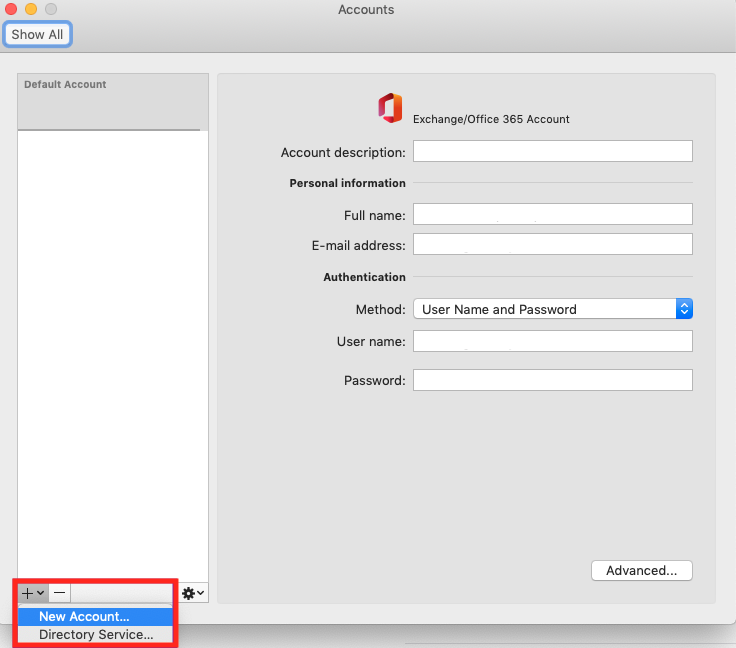
- Select + (plus) > New account.
Note: You might need to choose your account type as Work/School to continue.
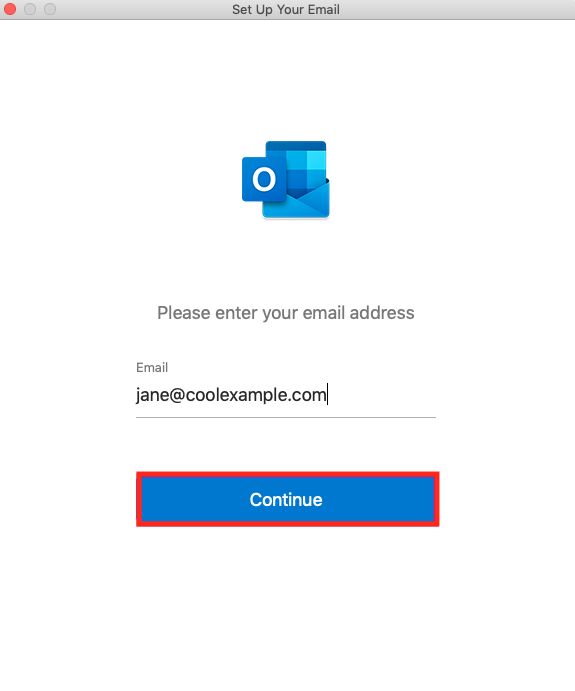
- Enter your email address and select Continue.
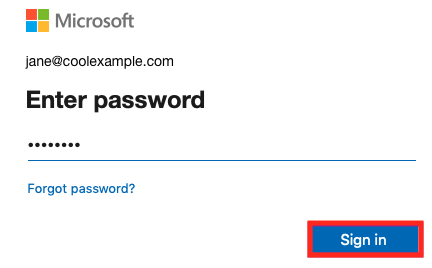
- Enter your email password and select Sign in.
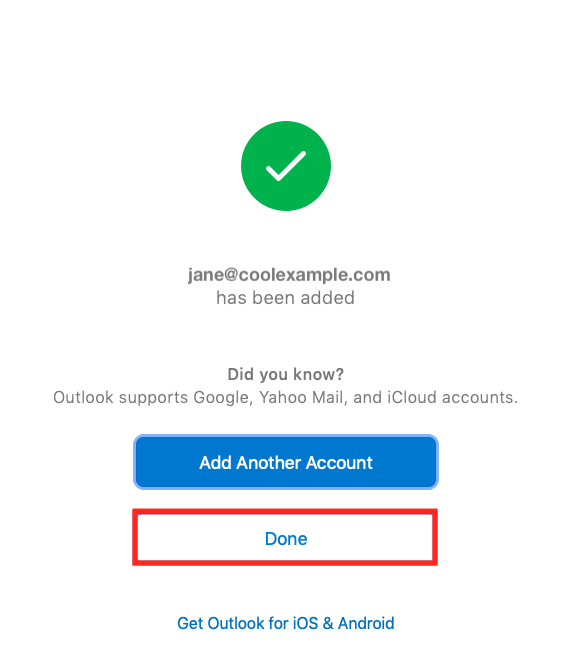
- Select Done. If you have more than one account, decide which account you want to set as the default.
Your account will display, and your email will load, which can take a few minutes.